Pushing Delinea Secrets to Azure Key Vault
Overview
We follow a "Delinea-first" approach to secrets management when the value of these secrets must be maintained by a party that does not work in Azure (e.g. SQL servers, Archer API key). This means that Delinea should serve as the authoritative source of truth versus Azure Key Vaults. The value in the Key Vault should be treated as ephemeral and subject to change at any time. Instead, secrets should be created or updated in Delinea first, then pushed up to Azure Key Vault via the "Sync" feature. Deletion of secrets should be done in Delinea and Azure Key Vault independently.
Create a Secret
To create a Delinea-managed secret:
- Click on "Secret Server" on the Delinea homepage or go to the "All secrets" page
- Click "Create secret" in the top right
- Choose a folder in Delinea where the secret will be stored. DO NOT use a personal folder.
- Choose the most relevant secret template from the list. For the most flexible option with the least protection, use "Pin".
- Secret name: A unique secret name
- Value: The value of the secret
- On the next page, click the "External secrets" tab at the top.
- Click "Create external secret" in the top right. Fill in the values you need:
- External secret: The name of the secret that will be used in Azure Key Vault
- External vault: The name of the Azure Key Vault to which this secret will belong
- Check the box for Synchronization
- Linked secret: Find the secret name from the earlier step by searching for it
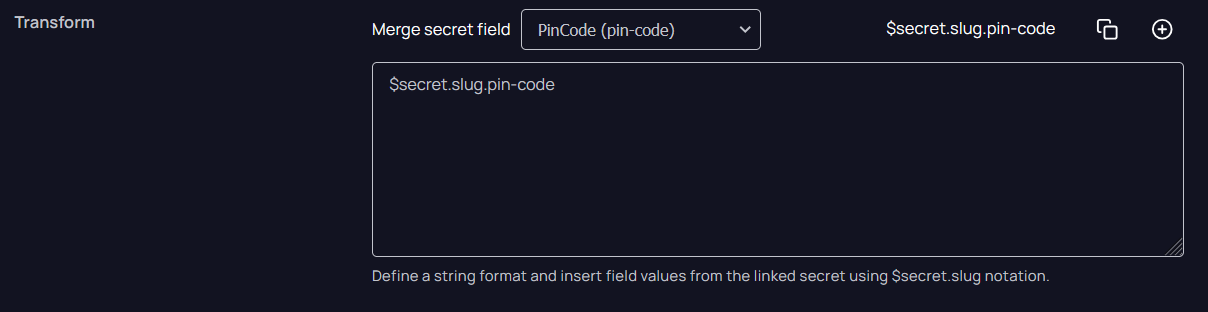
- Transform: Select "PinCode (pin-code)" from the list. Then copy the value on the right of the dropdown and paste it into the text box.
- On the next page, click "Push" on the top right if you are ready to send it to your Azure Key Vault.
- Check your Azure Key Vault to see if it succeeded
Update a Secret
- Find the secret you would like to update in the relevant Secret Server folder
- Click the "Edit" button in the top right or click the pencil/pen icon next to the value of the secret then click "Generate"
- You may also need to use the "Change password now" button depending on the secret template to ensure this affects the resource in question
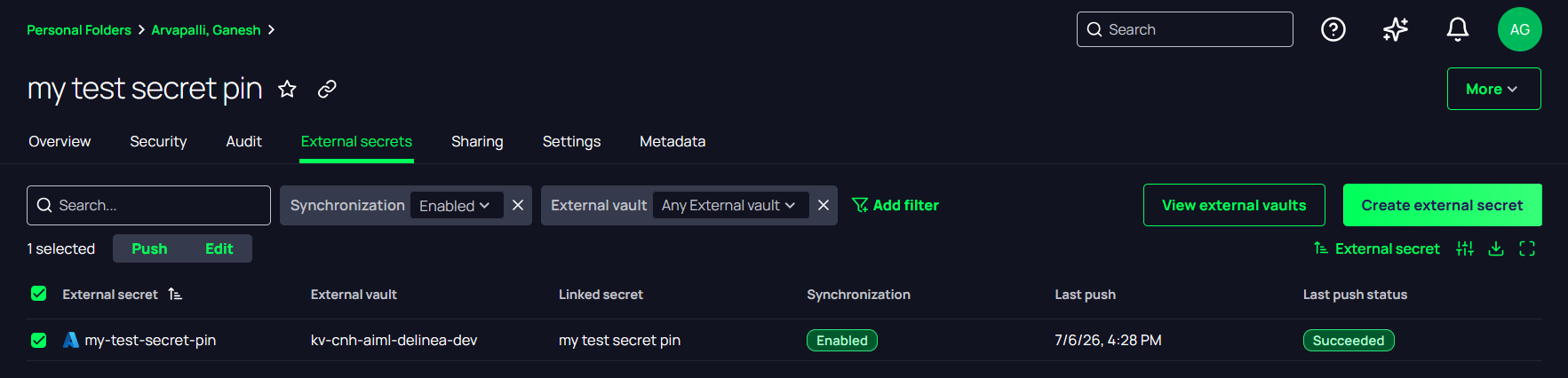
- Click the "External secrets" tab
- If synchronization is available on the secret, the Azure Key Vault secret will appear in the list. If not, you will need to change the filters at the top so they say "Synchronization: All states". Check the box next to the secrets you want to sync.
- Secrets MUST have synchronization turned on to be pushed up to Key Vault. If syncing is disabled, you can click the "Edit" button above the list and check the box for synchronization.
- Click the "Push" option that appears above the list