Tracking Stories in GitHub and Monday
This guide assumes you are using the standard Agile Scrum board supplied by Monday with views added for Stories/Tasks. It also assumes you already have integrated GitHub into your Monday instance.
- Start by creating a task in Monday.
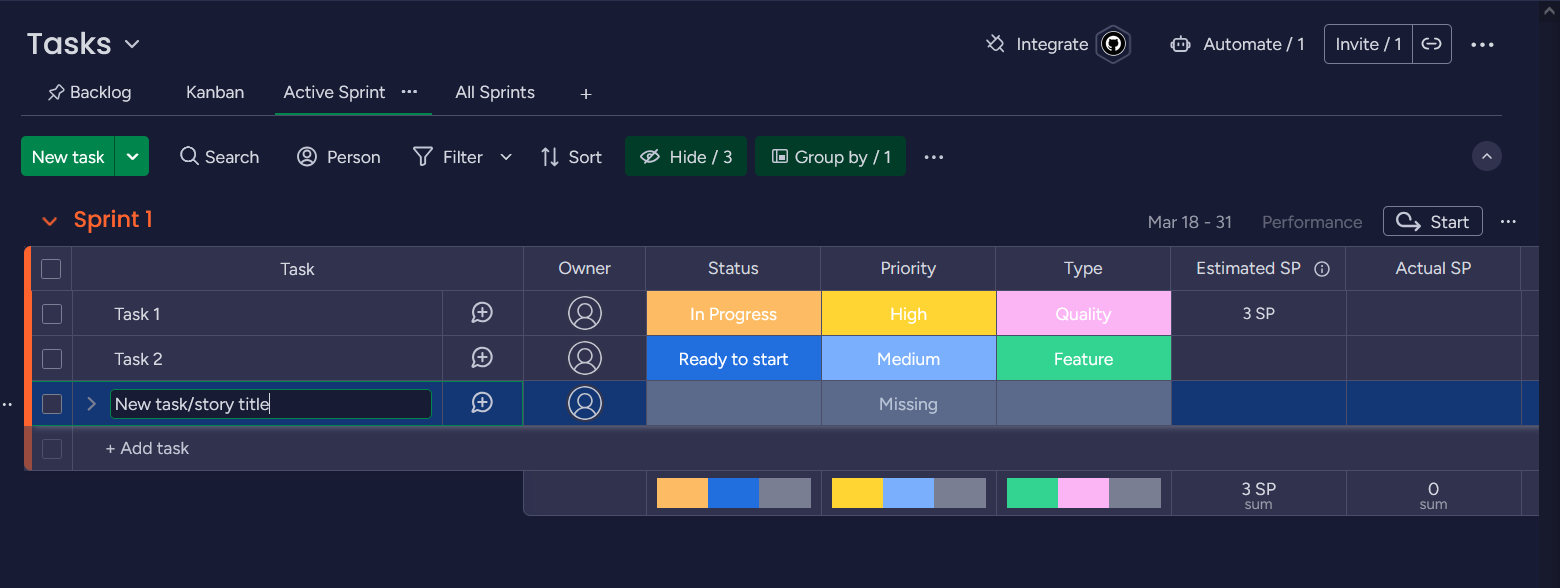
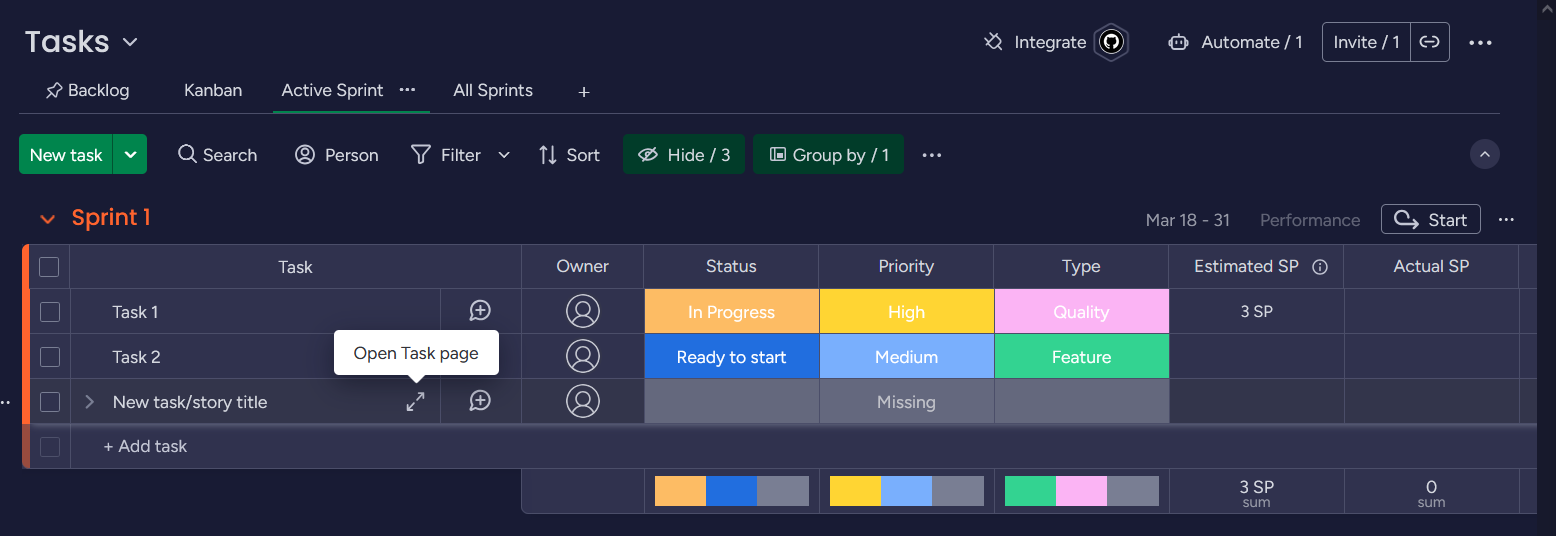
- Click the "Expand Task/Story" double arrow icon to pop out the description. You can also click on the story itself.
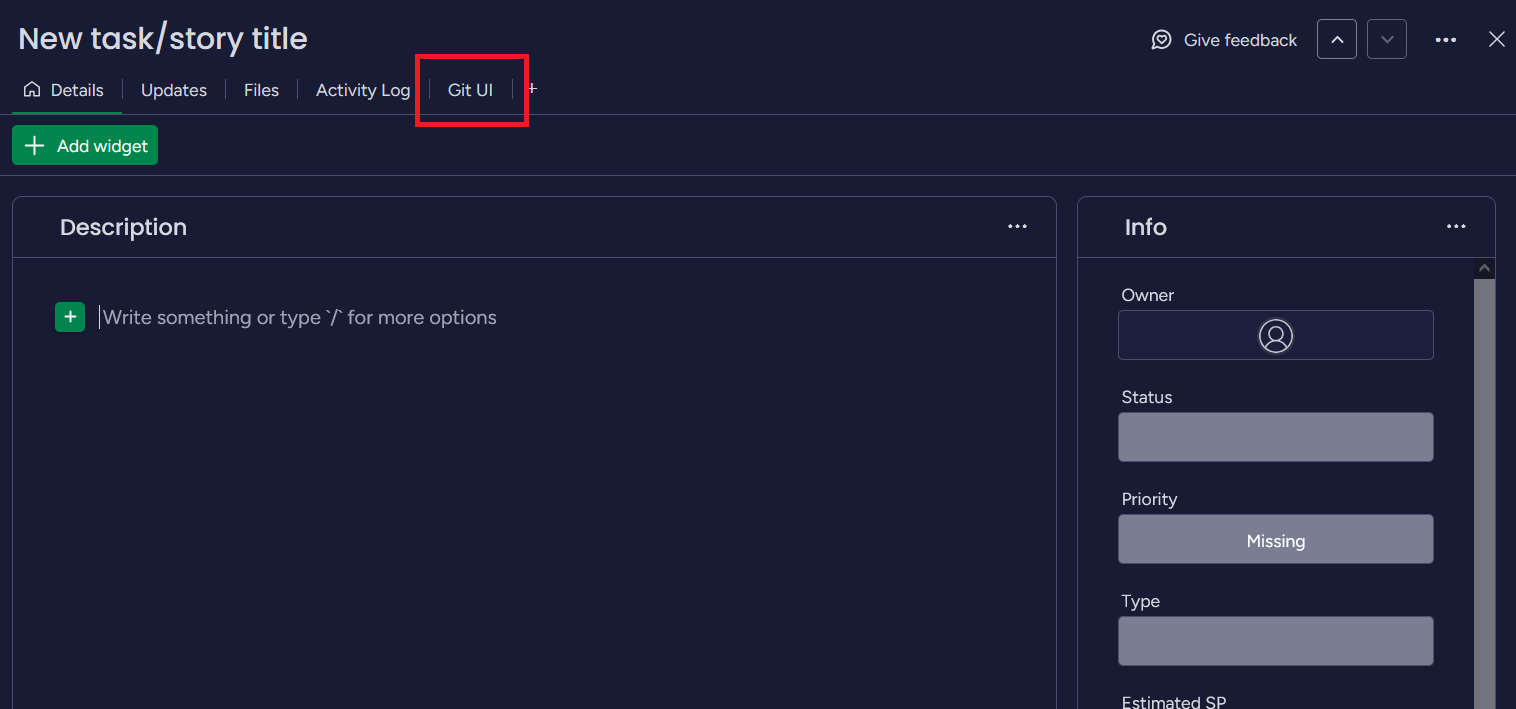
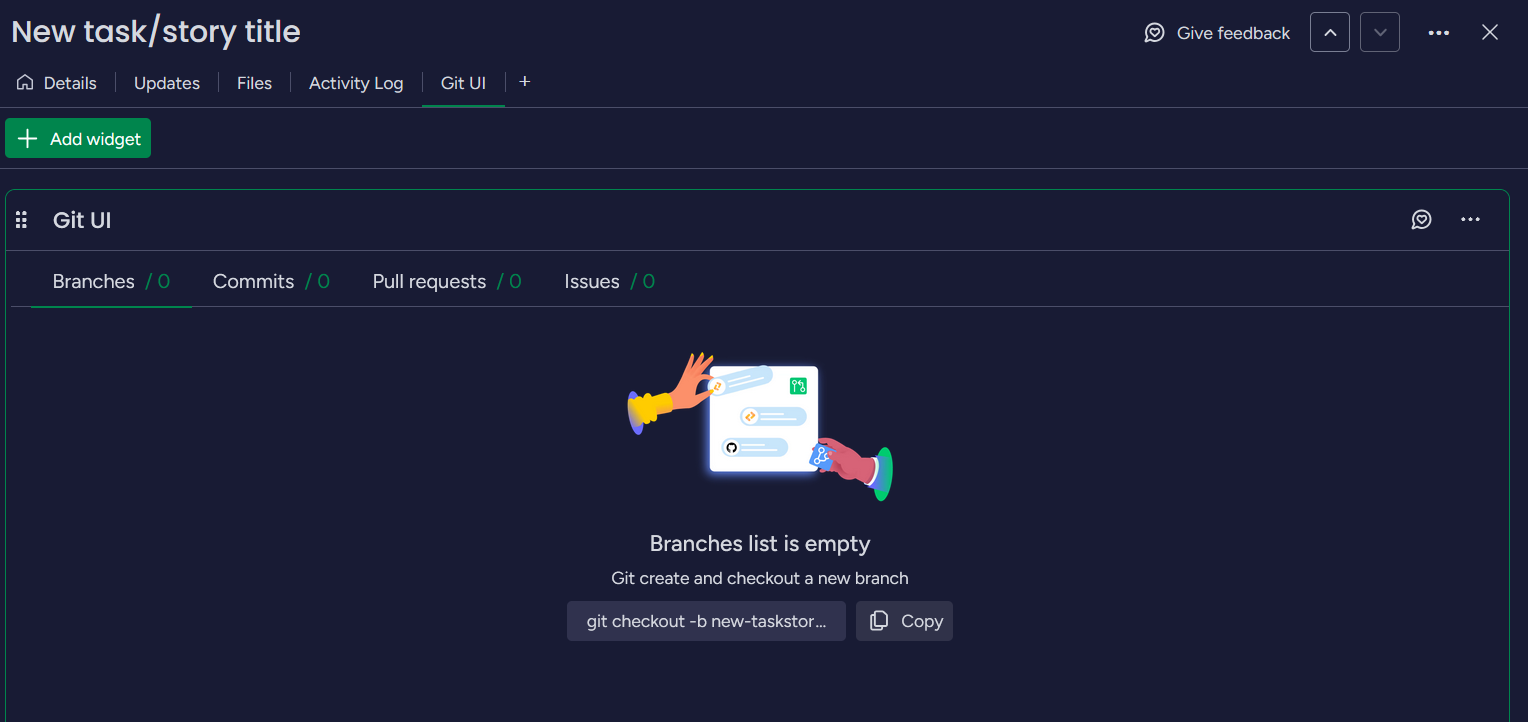
- Click the "Git UI" tab to view
- Copy the suggested command to check out a branch in Git. The title of the branch will be something like
<name of task/story>-<item ID>.
Tip
The item ID value is automatically generated by Monday and attached to this task/story. The value just has to be mentioned somewhere in the name of the branch for Monday to track it, but the title of the branch is flexible otherwise. For example, I could add my initials and type of the task/story as follows: gca/feature/<name of task/story>-<item ID>.
The Item ID can be mentioned in:
- Branch name
- Commit messages
- PR title/description
- Merge description
for tracking to appear in Monday.
Tracking also works across repositories. So if you use the item ID anywhere in the above items, it'll show up on Monday.
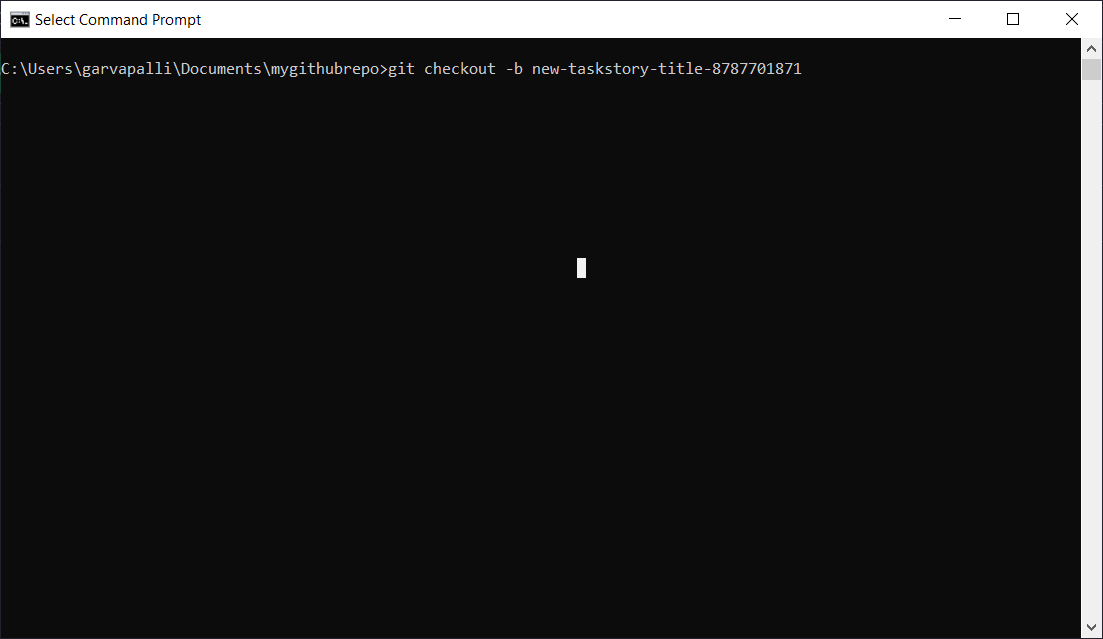
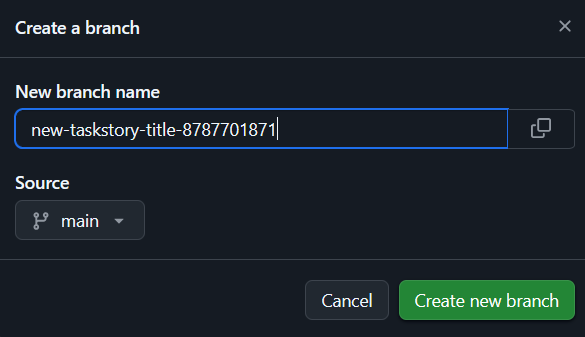
- Check out the branch in your IDE/terminal or on GitHub
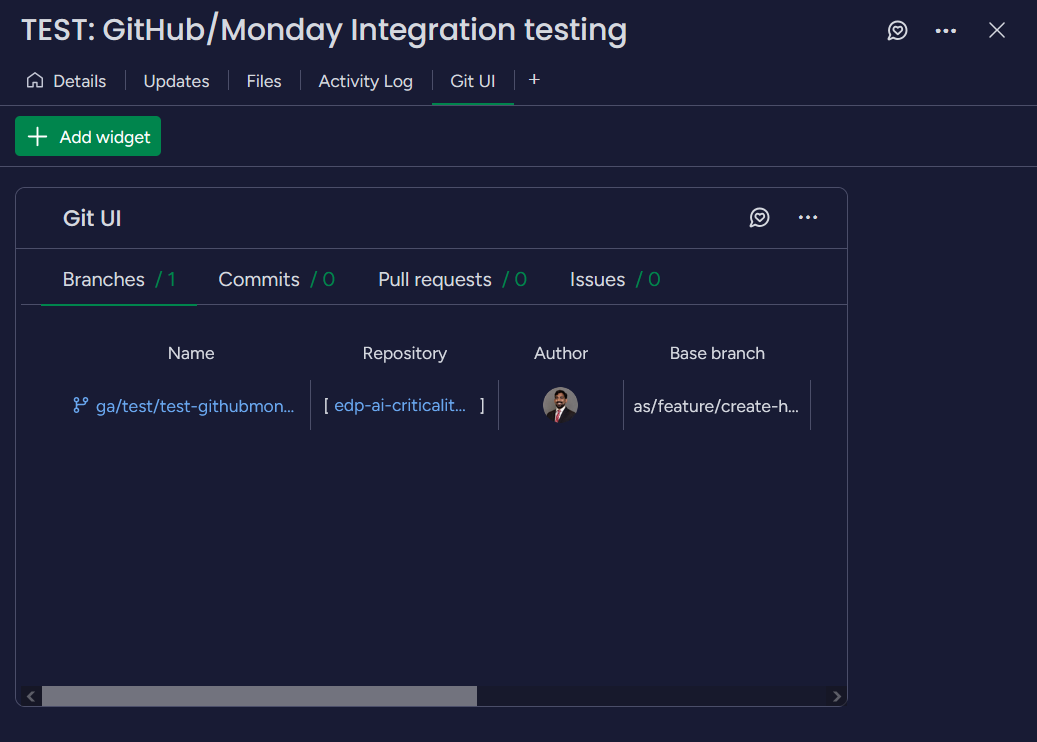
- Navigate back to Monday and the Git UI tab to see if things are being tracked correctly. You should see that the branch is now available to view!