GitHub Copilot With Azure OpenAI
This guide describes how to configure GitHub Copilot Chat in VS Code to use Azure OpenAI models through the OAI Compatible Provider for Copilot extension.
Important
Please disable code completions if you plan to use GitHub Copilot. We are charged separately for code completions versus conversational interactions. To disable completions, follow these instructions:
- Open preferences with
CTRL+SHIFT+Pand type inPreferences:Open User Settings - Expand the "Extensions" section and select "GitHub Copilot Chat"
-
Uncheck all settings related to "inline suggestions" or "next edit suggestions". Note that the name for these changes constantly and you may need to do some digging.
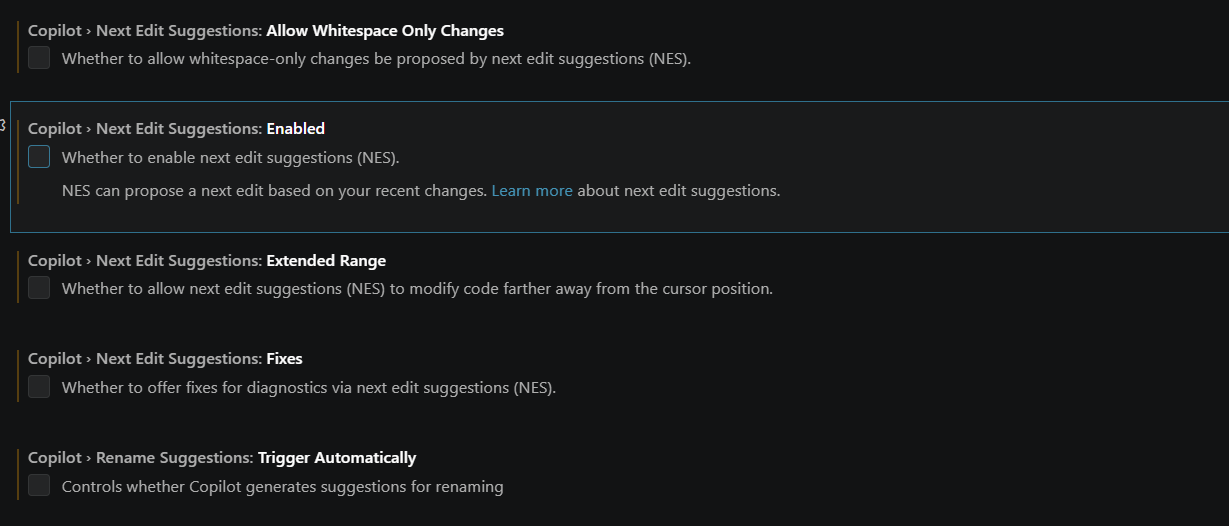
-
You can also click the GitHub Copilot icon in the bottom right and disable code suggestions using that menu if needed.
Prerequisites
- Visual Studio Code installed
- GitHub Copilot access enabled for your GitHub account
- Azure OpenAI endpoint and API key for the model you want to use
1. Install VS Code
Download and install Visual Studio Code if it is not already installed.
2. Install the OAI Compatible Provider Extension
- Open VS Code.
- Open the Extensions pane.
- Search for
OAI Compatible Provider for Copilot. - Install the extension.
3. Open User Settings JSON
Open the VS Code user settings JSON file:
- Open the Command Palette with
Ctrl+Shift+P. - Run
Preferences: Open User Settings (JSON). - Add the Azure OpenAI model configuration to the JSON object.
Do not commit API keys or personal settings files to source control.
4. Add an Azure OpenAI Model
Follow this pattern in settings.json to register an Azure OpenAI model:
{
  "oaicopilot.models": [
    {
      "id": "gpt-5-mini",
      "displayName": "AIML GPT 5 Mini",
      "owned_by": "azure-openai",
      "baseUrl": "https://aif-aiml-dev.services.ai.azure.com/api/projects/aiml/openai/v1",
      "apiMode": "openai-responses",
      "context_length": 128000,
      "max_tokens": 4096
    }
  ]
}
If your settings.json already has other settings, add only the "oaicopilot.models" property and keep the existing JSON valid.
5. Enable OAI Models in Copilot Chat
- Open the GitHub Copilot Chat window in VS Code.
- Expand the model picker.
- Select
More Models. - Disable all public hosted models.
- Ensure all OAI models are enabled.
- Select the Azure OpenAI model you added, such as
AIML GPT 5 Mini.
GitHub Copilot Chat should now route chat requests through the configured Azure OpenAI model.