Approving and publishing agents
How to Publish Agents Created in Copilot Studio to the CNH Agent Store
Pre-Req
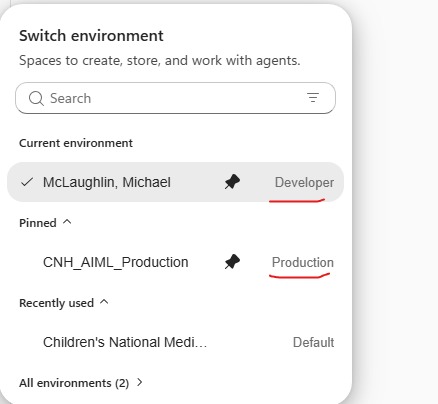
- Make sure that the agent that is trying to be shared is in a personal developer environment or a dedicated team envrionment:
- Before publishing, you must have the AI Administrator Office 365 Role active. Note that this is a PIM role.
Step 1: Publish the Agent from Copilot Studio
- The agent creator needs to Publish the agent to Copilot365 and MS Teams.
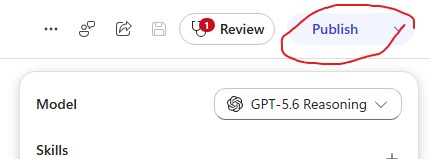
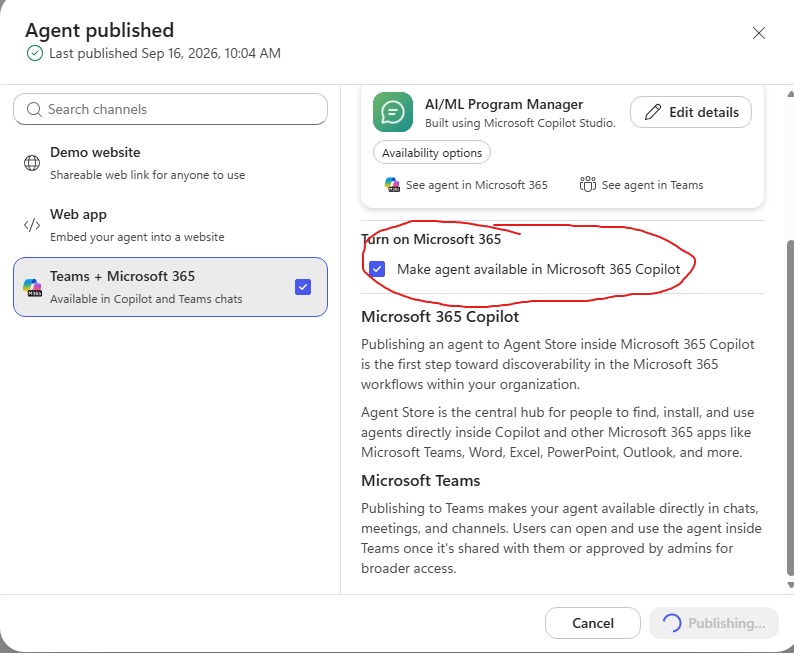
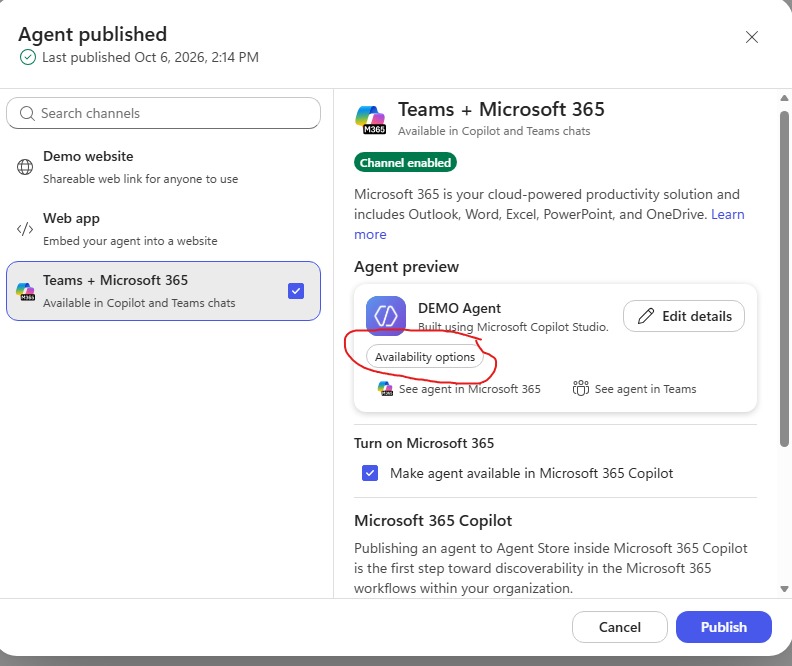
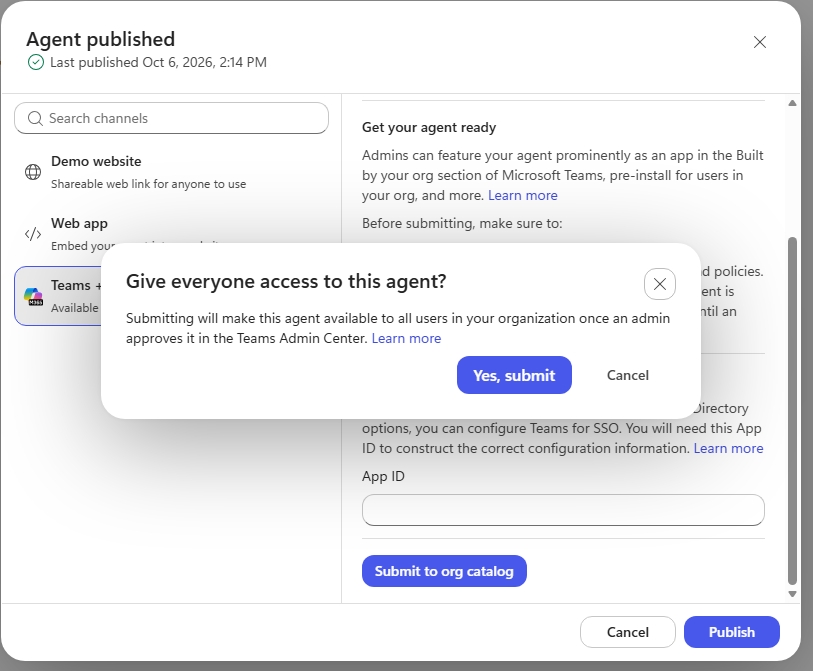
- Once published, they need to publish to the Agent Store by clicking on
Availability Optionsin the Publish menu (Note: Depending on use case and authorization process, you may need to get App ID):
Step 2: Publish the Agent from M365
-
With the AI Administrator role active, go to
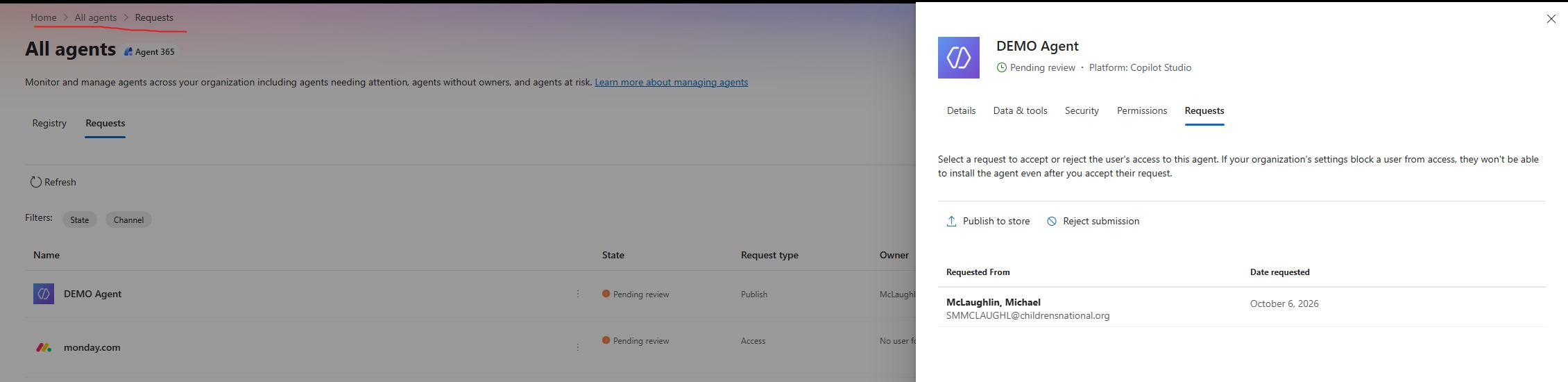
admin.microsoft.com. This will take you to the M365 Admin page. Once in the page, navigate to Agents -> All Agents -> Requests. The request to publish should appear there:
-
From there, click Publish to Store and follow the steps to publish an agent. This can include making it available to a subset of users (e.g., all users in an Entra security group) versus the entier organization. It also allows you to make an agent available for end users to install versus installing an agent for end users.