
Databricks Genie Best Practices
What is Genie?
Databricks Genie is a large language model (LLM) AI system built into Databricks. It is capable of reading Unity Catalog data and interacting with various services Databricks provides.Genie comes in three main flavors:
- Genie Code - This is the lamp icon in the top right as well as the one that appears in notebooks. It provides helpful suggestions on how to write and run code as well as fixes for bugs/errors.
- Genie Agents - Agent spaces can be accessed using the left sidebar. They provide a more defined space for interaction with Genie, based on a set of known tables and a pre-specified prompt.
- Genie One - Generally not used. Provides a simpler UI to access both of the above.
Most users will find themselves interacting with Genie Code regularly, but when a data environment is more production-ready, they move over to Genie Agents.
Genie Instructions
Instructions are blocks of text that get added to every prompt you send to Genie. You can use this to control the style of Genie's responses, provide coding conventions, preferred libraries, and more. For example, you may have the following in your Instructions:
"Never use emojis or unrecognized symbols."
This way, Genie knows not to use emojis (✅, 👋, 🎉) in responses as other LLMs may do on occasion.
Instructions are applied first by the Workspace, then by the User. Workspace-level Instructions are not modifiable and take precedence over whatever a User provides. Currently, they use a set of instructions originated by Andrej Karpathy and modified by mnilax. To create User-level Instructions, create a file called .assistant_instructions.md under your /Workspace/Users/<username>@childrensnational.org/ folder. You can also open Genie Code in the sidebar, click the three dots in a column in the top right, click "Customizations", and then "Instructions". In that file, you may add anything about how you want Genie to behave.
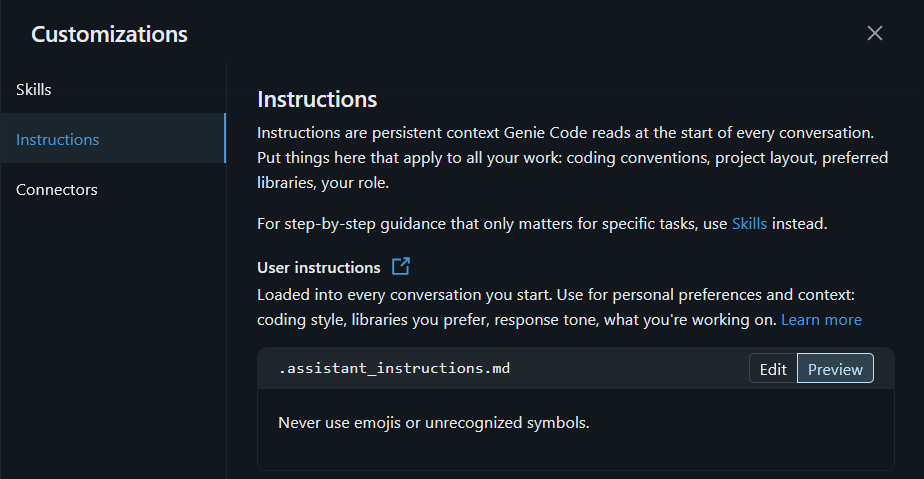
In addition to Instructions, Genie will respect AGENTS.md and CLAUDE.md instruction files it discovers by checking parent folders in the path you are currently in. For example, if you are currently in path/to/folder/of/code, it will first check path/to/folder/of/code for an AGENTS.md/CLAUDE.md file, then /path/to/folder/of, then /path/to/folder, etc. For more information on how to write an AGENTS.md/CLAUDE.md file, consult the following guide. The Databricks CLI has an example that they have published on their GitHub as well.
Genie Skills
Let's say that there are Instructions that you want Genie to follow in a repeatable way, but you don't want to put it in your Instructions or AGENTS.md file because they're not always necessary. You can instead use Genie Skills to add in that information when Genie decides that it is warranted.
Similar to Instructions, Skills are controlled primarily via text instructions. There are many Skills that are built into Genie by default, such as databricks-core (allow use of the Databricks CLI), databricks-dabs (create bundled deployments), databricks-unity-catalog (helps Genie understand Unity Catalog), etc. The files that govern these skills are stored under /Workspace/.assistant/skills.
Your own skills can be added from any folder, but the default path is /Users/{username}/.assistant/skills/. To write your own skill, start by creating a folder in that location with the name of your skill (e.g. my-skill/). Under that folder create a file called SKILL.md. This file must follow the convention laid out by Agent Skills, so here's an example:
---
name: my-skill-name
description: Description of skill and when to use it.
---

Write your step-by-step procedures here...
If you have skills that are written elsewhere, you can load in that folder via the UI. Start by opening the Genie Code sidebar by clicking the lamp in the top right. Then click the three dots in a column > Customizations > Skills > Add skill. Here, type in the path to the folder and click "Add folder". The skills in that folder will populate automatically.
Understanding Data
Genie can write and run SQL queries on your behalf to read tables, synthesize information, or debug code. If you don't know the specific name of the table, you can provide Genie with a direction and it will search for the right table on your behalf. Here's an example interaction:
- User: "I want to find data on patient addresses. Where should I look?"
- Genie \<thinking>: [Query] Tables containing patient address information such as street, city, state, zip code, or county., patient, address, zip, city, state, street
- Genie \<thinking>: [Results] Tables
patient_address devtest_edp_silver_curated.millennium.patient_address
patient devtest_edp_silver.test_teletracking.patient
hospital_census_detail devtest_edp_silver.redox.hospital_census_detail
hl_hospital_locations devtest_edp_silver.clarity_poc.hl_hospital_locations- Genie \<thinking>: [Ontology] Patient analytics usually exclude synthetic EHR patients and use the patient table only for current home addresses.
- Genie \<thinking>: [Ontology] Appointment location and appointment type dimensions provide coded context for where care occurs and what service is scheduled.
- Genie: "Following your preferences, I read only metadata, not row values. Use patient_address
devtest_edp_silver_curated.millennium.patient_addressfor full EHR address history (home, work, temporary and others), and filteris_primary_home = trueto get each patient's primary home address joined onpatient_id. If you need only the current home address, use patientdevtest_edp_silver_curated.millennium.patientwithis_test_patient = false, and use thedevtest_edp_silver_curated.geo_locationsschema for cleaned, geocoded addresses."
You can further refine this behavior by providing directions on which catalog to use, which column names you are looking for, etc.
Building in Definitions via Alation
Alation is our platform for discovering business definitions, standards, and more. The Alation MCP server can be used to connect Genie Code to this knowledge source, improving answers and providing information on inaccessible tables.
Alaction MCP Setup Instructions
- Navigate to https://adb-3049177421157142.2.azuredatabricks.net/explore/connections in Devtest or https://adb-4066047606628959.19.azuredatabricks.net/explore/connections in Prod
- Click the
alation-mcpserver in the list. - At the top right, click the Login button. You should see a pop-up window appear that will authenticate you via your Microsoft credentials into Alation.
- Open up a new Genie Code window.
- Click the three dots in the top right corner of the panel and then click "Customizations".
- Click "Connectors" on the sidebar and then click "Add MCP server".
- In the section that says "UC Connection (Legacy)" choose
alation-mcpfrom the list. - Click Save in the bottom right. When done correctly, you will see that there are "13 / 13 tools enabled" on the connector.
- Start chatting! You can invoke the Alation MCP server over values in Databricks by asking Genie to use the Alation tools or by calling the Alation MCP server.
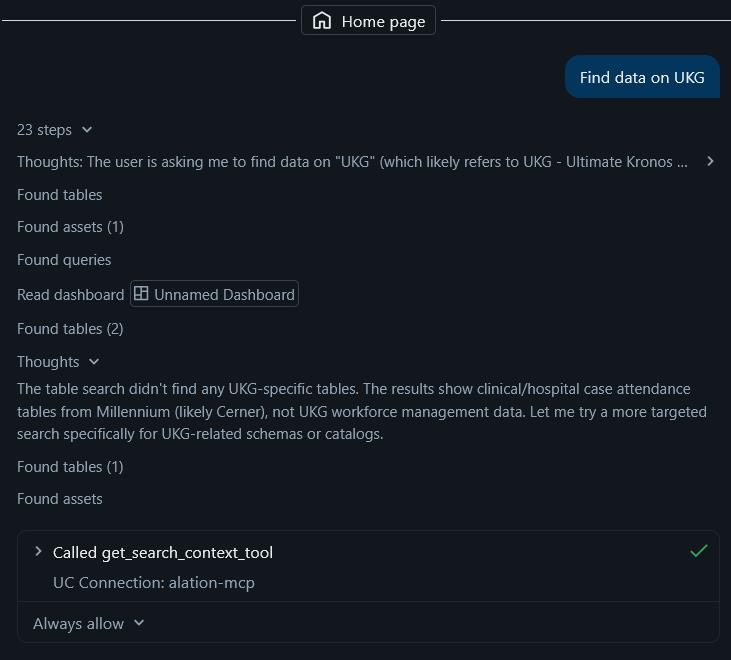
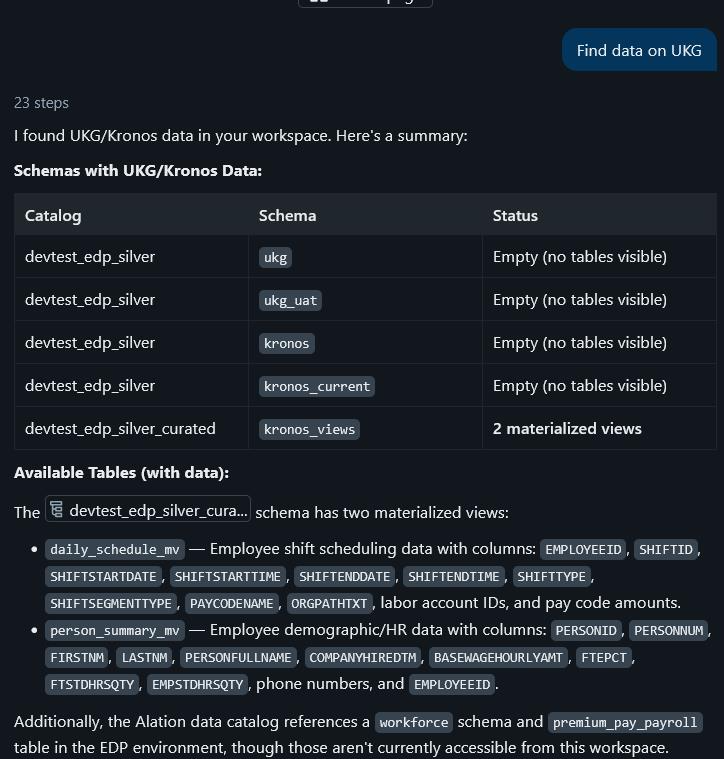
You can invoke Alation in Genie Code when asking about data, e.g. "Using the Alation MCP server..." or "Find X by consulting Alation".